
- Published on
Control your windows computer using telegram
Why This Project?
In office environments, locking your screen when stepping away is a common security requirement. Forgetting to do so can lead to pranks, data exposure, or worse. Wouldn’t it be convenient if you could lock (or even manage) your computer remotely — directly from your smartphone?
That’s exactly what we’ll build in this guide: a Telegram bot that allows you to securely control your Windows computer using Python.
We’ll use the excellent python-telegram-bot library, along with a few helper modules, to give our bot superpowers.
Final Product
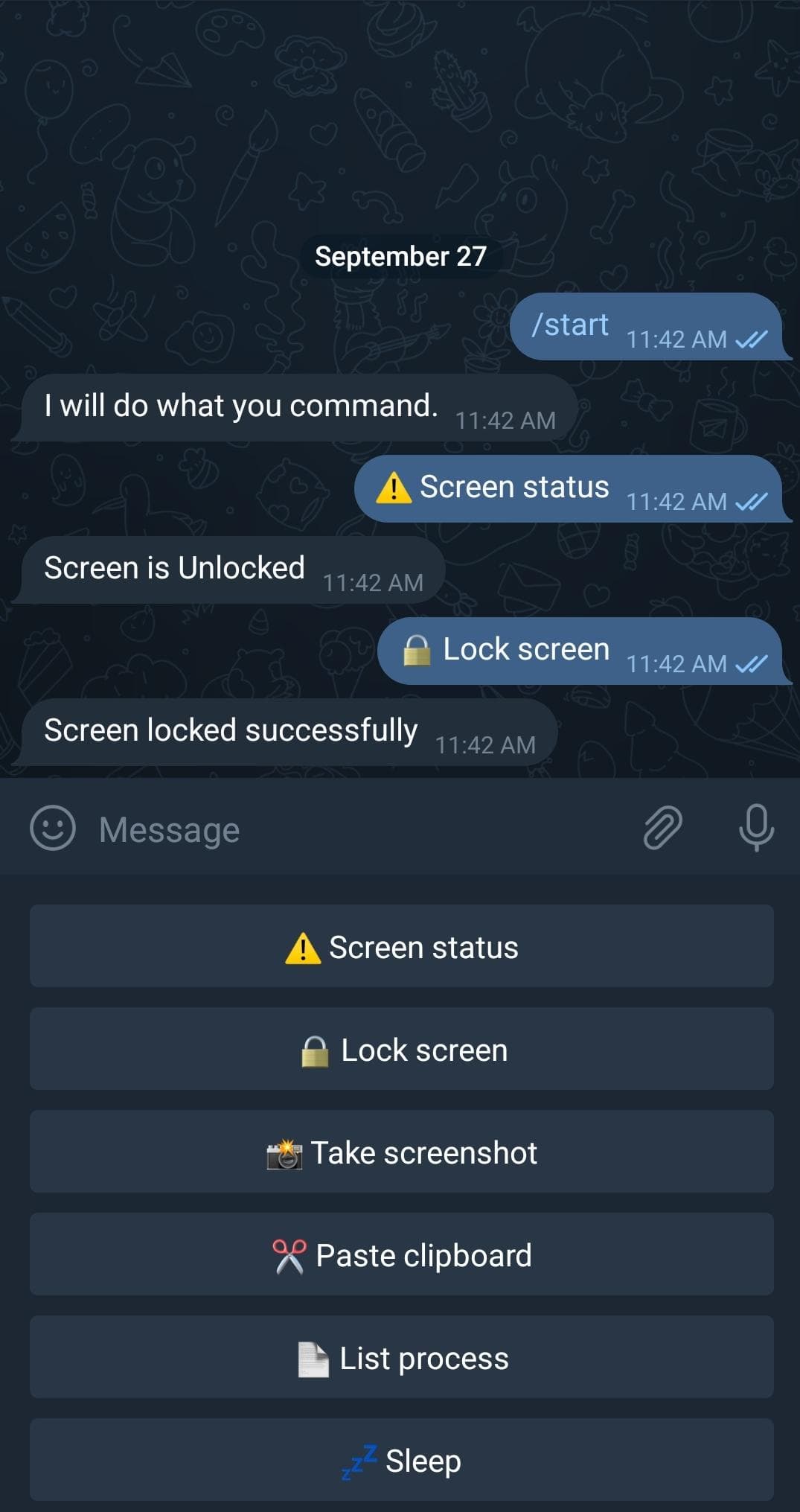
Here’s what the final bot looks like in action. The /start command presents a menu of options — from checking the screen status and locking it, to taking screenshots, listing processes, and running shell commands.
Step 1: Get Your API Token and Chat ID
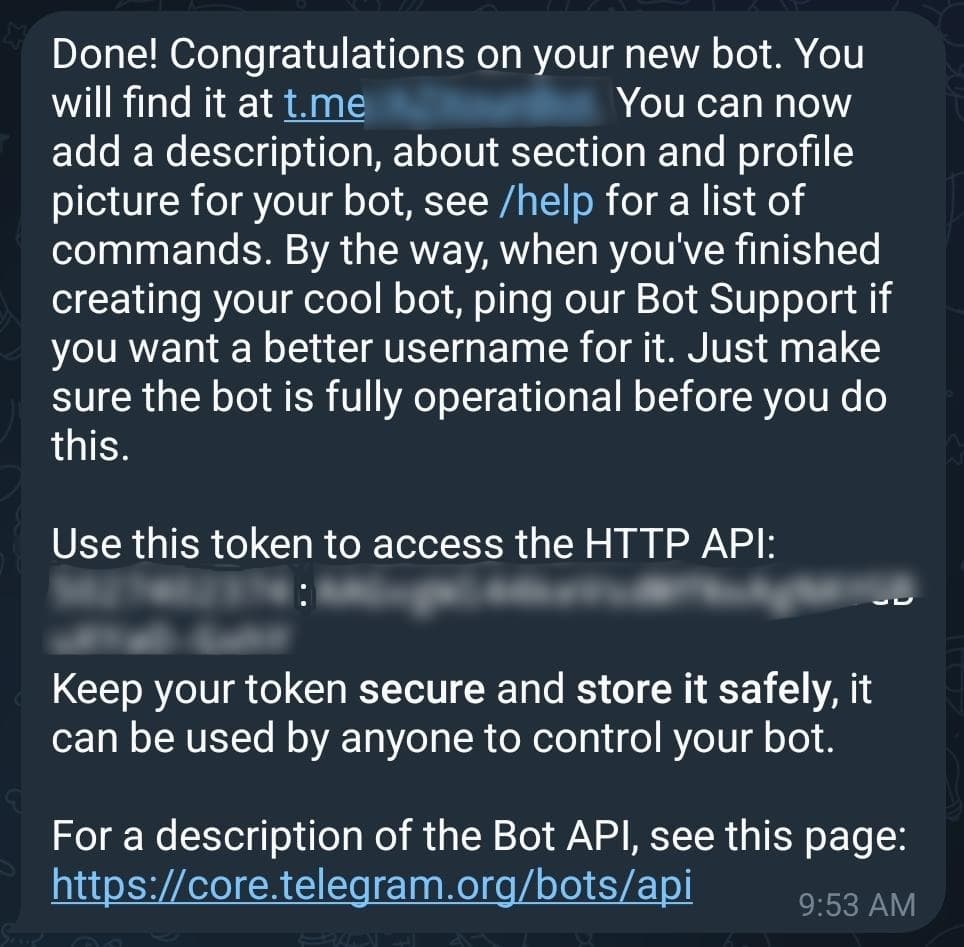
Every Telegram bot needs an API token. To generate one:
- Open Telegram and search for @BotFather.
- Start a conversation and send
/newbot. - Choose a name (display name) and username (must end with
bot). - BotFather will generate a token — copy and save it securely.
Next, you’ll need your chat ID:
- Start a chat with @RawDataBot.
- Send
/start. - Copy your
chat_idfrom the response — we’ll need this to restrict access.
Step 2: Set Up Your Project
Install the required Python libraries:
pip install python-telegram-bot mss psutil pyperclip
Create an auth.json file to store your credentials securely:
{
  "TOKEN": "YOUR_TELEGRAM_BOT_TOKEN",
  "CHAT_ID": "YOUR_CHAT_ID"
}
Step 3: Write the Bot
Let’s walk through the main features.
Initialization
import json
from telegram.ext import Updater, CommandHandler, MessageHandler, Filters
from telegram import KeyboardButton, ReplyKeyboardMarkup
import psutil, ctypes, tempfile, os, subprocess, webbrowser, pyperclip
from mss import mss

class TelegramBot:
    def __init__(self):
        with open("auth.json") as f:
            auth = json.load(f)
        self.TOKEN = auth["TOKEN"]
        self.CHAT_ID = auth["CHAT_ID"]
Commands and Menu
When the user types /start, we’ll show a menu of available commands.
def start_command(self, update, context):
    buttons = [
        [KeyboardButton("⚠ Screen status"), KeyboardButton("🔒 Lock screen")],
        [KeyboardButton("📸 Screenshot"), KeyboardButton("✂ Clipboard")],
        [KeyboardButton("📄 List processes"), KeyboardButton("💤 Sleep")],
        [KeyboardButton("💡 More commands")]
    ]
    context.bot.send_message(
        chat_id=self.CHAT_ID,
        text="Available commands:",
        reply_markup=ReplyKeyboardMarkup(buttons)
    )
Lock and Screen Status
def handle_message(self, update, input_text):
    if input_text.lower() == "screen status":
        for proc in psutil.process_iter():
            if proc.name() == "LogonUI.exe":
                return "🔒 Screen is locked"
        return "💻 Screen is unlocked"

    if input_text.lower() == "lock screen":
        ctypes.windll.user32.LockWorkStation()
        return "✅ Screen locked successfully"
Screenshot
def take_screenshot(self):
    path = os.path.join(tempfile.gettempdir(), "monitor-0.png")
    with mss() as sct:
        sct.shot(output=path)
    return path
Clipboard
if input_text.lower() == "clipboard":
    return pyperclip.paste()
Process Management
if input_text.lower() == "list processes":
    processes = "\n".join([p.name() for p in psutil.process_iter()])
    return processes

if input_text.startswith("kill "):
    _, target = input_text.split(maxsplit=1)
    for proc in psutil.process_iter():
        if proc.name() == target:
            proc.terminate()
            return f"☠️ {target} terminated"
    return "Process not found"
Shell Commands
if input_text.startswith("cmd "):
    command = input_text.split(" ", 1)[1]
    res = subprocess.run(command, shell=True, capture_output=True, text=True)
    return res.stdout or res.stderr
Error Handling and Startup
def error(self, update, context):
    print(f"Update {update} caused error {context.error}")

def start_bot(self):
    updater = Updater(self.TOKEN, use_context=True)
    dp = updater.dispatcher
    dp.add_handler(CommandHandler("start", self.start_command))
    dp.add_handler(MessageHandler(Filters.text, self.send_response))
    dp.add_error_handler(self.error)
    updater.start_polling()
    print("[+] Bot started")
    updater.idle()
Run the bot:
if __name__ == "__main__":
    bot = TelegramBot()
    bot.start_bot()
Step 4: Test and Extend
Launch the script on your Windows machine. Open Telegram, search for your bot, and try the commands.
Possible extensions:
- Remote file browsing and download.
- Media controls (play/pause music, adjust volume).
- Integration with system monitoring tools.
Security Notes ⚠️
- Restrict the bot to your chat ID only.
- Avoid running this bot on sensitive machines — executing arbitrary shell commands can be dangerous.
- For real-world usage, consider encryption or VPN tunneling in addition to Telegram’s security.
Conclusion
With just a few Python libraries and Telegram’s Bot API, you’ve built a powerful personal automation tool. While this project started with a simple “lock screen” requirement, it can easily be extended into a full-fledged remote desktop assistant.